How To Install A Custom Indicator On MT5 For Mac (Step By Step)
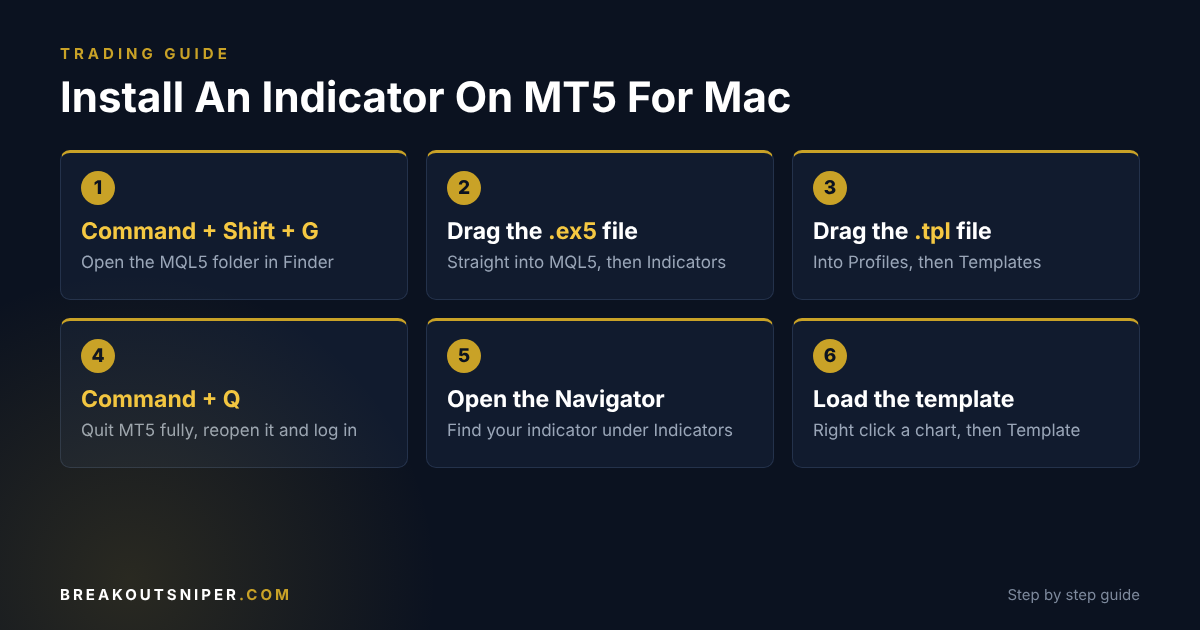
To install an indicator on MT5 for Mac, copy the indicator file into the MQL5, then Indicators folder using Finder, then restart MetaTrader 5 and load it from the Navigator. On a Mac, MetaTrader 5 runs inside a Windows layer, so its folders are hidden deep inside your Library folder, and the quickest way to reach them is Finder’s Go to Folder box (Command + Shift + G).
That is the whole idea. The rest of this guide walks you through it slowly, with the exact folder path, what to do if you cannot find it, and how to fix the problems Mac users run into most.
This guide started with one of our own traders. He runs MetaTrader 5 on a MacBook Air, and the usual Windows instructions simply did not work for him. He worked out the steps below, and we have written them up so nobody else has to.
Why The Usual Install Method Does Not Work On A Mac
Most indicator instructions are written for Windows. They say: open MetaTrader, click File, then Open Data Folder, and drop the file in.
On a Mac it is not that simple, for one reason. MetaTrader 5 is a Windows program. The Mac version you download from MetaQuotes, or from most brokers, is the Windows program wrapped inside a compatibility layer so it can run on macOS.
That wrapper does two things that confuse Mac users:
- It hides MetaTrader’s folders inside your Library folder, which macOS keeps hidden by default. You will not find them by browsing your home folder normally.
- The Open Data Folder button may not behave the way the instructions describe. Depending on your version, it may open a plain Windows style file window instead of Finder, which makes dragging files in awkward.
So the trick is to go around MetaTrader and put the files in place with Finder, the Mac’s own file manager. Once you know where the folder is, it takes about two minutes.
What You Need Before You Start
- MetaTrader 5 installed on your Mac and logged in to your trading account at least once, so its folders exist
- The indicator file, which ends in .ex5 for MetaTrader 5
- The template file if your indicator comes with one, which ends in .tpl
- If your files arrived in a .zip, double click it first. macOS unzips it into a normal folder next to the zip
Keep the file names exactly as they arrived. If your Mac adds “(1)” or “(2)” to a file name because you downloaded it twice, delete the duplicate and keep the original. A renamed indicator file can stop its template from finding it.
Step 1: Find The MT5 Data Folder With Finder
- Click on your desktop or open any Finder window, so Finder is the active app
- In the menu bar at the top of the screen, click Go, then Go to Folder. Or press Command + Shift + G
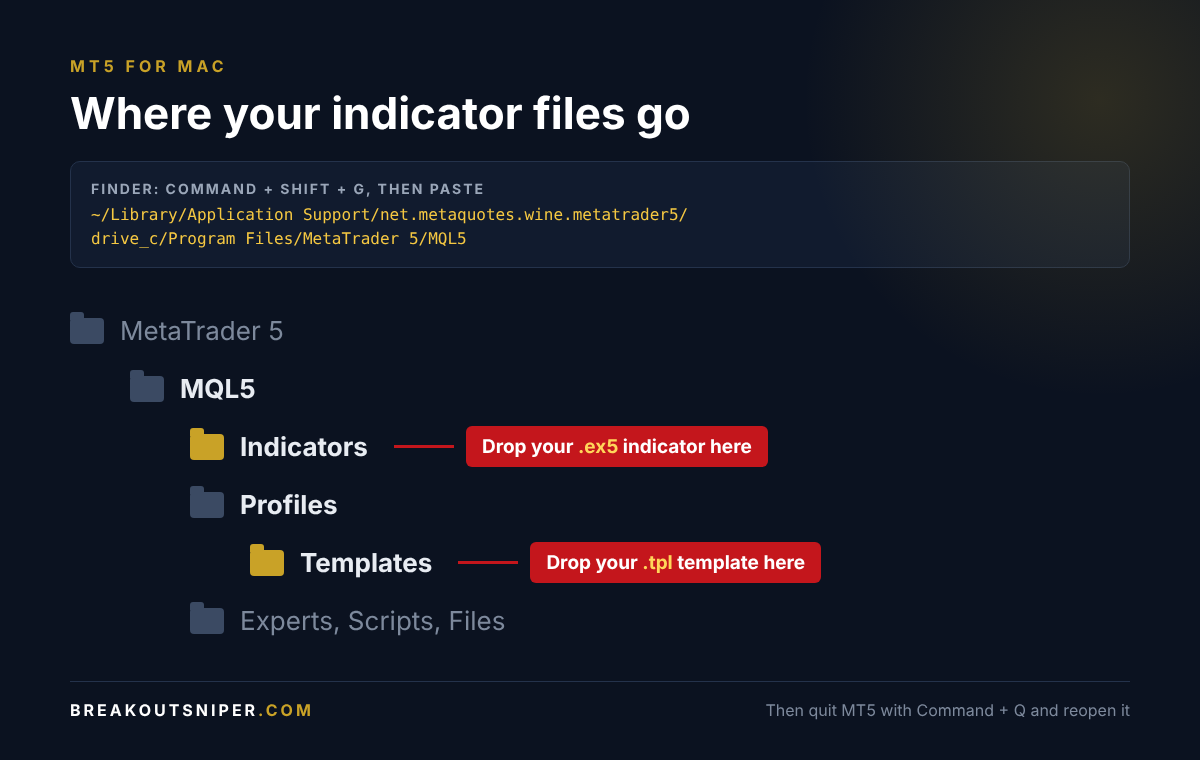
- A small box appears. Paste this path into it:
~/Library/Application Support/net.metaquotes.wine.metatrader5/drive_c/Program Files/MetaTrader 5/MQL5- Press Return
Finder opens the MQL5 folder. Inside it you will see folders such as Experts, Indicators, Profiles, Scripts and Files.
If Finder says the folder cannot be found, your MetaTrader is probably a broker’s own Mac version, which uses a different folder name. Skip to the section “If You Cannot Find The Folder” further down. It takes one extra minute.
Tip: once the MQL5 folder is open, drag it into the Favourites list in Finder’s sidebar. Next time you install or update an indicator, it is one click away.
Step 2: Copy The Indicator Into The Indicators Folder
- Open a second Finder window with Command + N, and go to the folder where your downloaded files are, usually Downloads
- Find your indicator file, the one ending in .ex5
- Drag it into the Indicators folder inside MQL5
Put the file straight into Indicators, not into a folder inside it. If you drag in a whole folder, the indicator usually still appears in MetaTrader, but a template may not be able to find it, and that is the most common reason a template loads with no panel.
Step 3: Copy The Template Into The Templates Folder
If your indicator came with a template (a .tpl file), it sets up your chart exactly the way the indicator was designed to be used: colours, layout and the indicator itself, in one click.
- Inside MQL5, open Profiles, then Templates
- Drag your .tpl file into that Templates folder
If there is no Templates folder inside MQL5, then Profiles, go back up one level from MQL5 to the MetaTrader 5 folder and look for Profiles, then Templates there instead. Different MetaTrader builds keep templates in one of these two places. If you are not sure which one your version uses, copy the template into both. It does no harm.
Step 4: Restart MetaTrader 5
MetaTrader only looks for new indicators and templates when it starts.
- Click on the MetaTrader 5 window
- Press Command + Q to quit it completely. Closing the window with the red button is not always enough
- Open MetaTrader 5 again, and log in to your trading account
If you bought a licensed indicator, log in to the exact account number it is licensed to. Many commercial indicators, including ours, check the account number and will show a locked panel on any other account.
Step 5: Find The Indicator In The Navigator
- Open the Navigator panel. In MetaTrader 5 it is under View, then Navigator, or press Control + N inside MetaTrader
- Open the Indicators section
- Your indicator appears in the list
If you do not see it, right click on Indicators in the Navigator and choose Refresh.
Step 6: Load The Template Or Attach The Indicator
If you have a template:
- Open a chart of the market your indicator is for. In MetaTrader, use File, then New Chart, or open one from Market Watch
- Right click anywhere on the chart
- Choose Template, then click the template name
The chart changes to the template’s layout and the indicator loads with it.
If you only have the indicator file:
- Find the indicator in the Navigator
- Drag it onto the chart
- A settings window opens. Check the settings and click OK
That is it. The indicator is now running on your Mac.
If You Cannot Find The Folder
If the path in Step 1 does not work, let MetaTrader tell you where its folder is.
- In MetaTrader 5, click File, then Open Data Folder
- A window opens showing the data folder. Look at the folder path it shows, or the folder names at the top
- If it opens in Finder, you are done: open MQL5 and carry on from Step 2
- If it opens as a Windows style window, note the name of the folder that contains drive_c. That is the name your version uses in place of net.metaquotes.wine.metatrader5
Then go back to Finder, press Command + Shift + G, and start typing:
~/Library/Application Support/Press Return, and look through the folders there for one with your broker’s name or “metatrader” in it. Inside it, follow drive_c, then Program Files, then your MetaTrader folder, then MQL5.
Have more than one MetaTrader on your Mac? Each one has its own data folder. Always install into the one you actually trade with, and the safest way to be sure is to use File, then Open Data Folder from inside that exact MetaTrader.
Troubleshooting
The indicator does not appear in the Navigator
- MetaTrader was not restarted. Quit it fully with Command + Q and open it again, or right click Indicators in the Navigator and choose Refresh
- The file went into the wrong folder. It must be in MQL5, then Indicators. Not in Experts, not in Scripts, and not in your Downloads folder
- You installed into a different MetaTrader. If you have more than one MetaTrader app, use File, then Open Data Folder from the one you trade with
- The file is for MetaTrader 4. MetaTrader 4 indicators end in .ex4 and will not run in MetaTrader 5. You need the .ex5 file
The template loads, but there is no indicator panel
- The indicator is inside a subfolder. Move the .ex5 file so it sits directly in MQL5, then Indicators, restart, and load the template again
- The file name changed. If your Mac added “(1)” to the name, the template is looking for the original name. Rename it back, or delete the duplicate
- An old chart is holding a frozen panel. Clear the chart’s objects (right click the chart, then Objects List, select all, delete), then load the template again
The panel says the account is locked
Licensed indicators check the account you are logged in to. Make sure you are logged in to the exact account number the indicator was licensed for, then restart MetaTrader. If the account is right and the panel is still locked, contact whoever supplied the indicator.
I cannot see the Library folder
macOS hides it on purpose. You do not need to unhide it: the Go to Folder box (Command + Shift + G) opens hidden folders directly. If you prefer to browse, open Finder’s Go menu and hold the Option key, and Library appears in the list.
The panel looks too small or too big on my Retina screen
Many indicators, including ours, have a panel size setting. Double click the indicator name in the chart’s indicator list (or right click the chart, then Indicators List), open its settings, and choose a larger or smaller panel size.
My alerts stop when my Mac sleeps
Indicator alerts only fire while MetaTrader is running. If your Mac goes to sleep, MetaTrader pauses with it. To keep alerts running, change your Mac’s sleep settings while you trade, or run MetaTrader on a VPS, a computer in a data centre that stays on all the time.
I run Windows on my Mac with Parallels
Then you are running the normal Windows version of MetaTrader. Follow the standard Windows steps inside Windows: File, then Open Data Folder, then MQL5, then Indicators. The Finder path in this guide does not apply.
Using Direction Sniper On A Mac
Everything in this guide works for any MetaTrader 5 indicator. It is also exactly how our own traders install Direction Sniper on their Macs.
Direction Sniper gives you one verdict for the market from the 4 hour and the daily charts: BUY, SELL, or stand aside. When a faster chart lines up with that verdict, the panel shows a full trade ticket with the entry, the stop loss and three targets, so you can work out your lot size before you enter. It runs the same way on a Mac as on Windows.
Every edition comes with its own .ex5 file and a ready made template, so after Steps 1 to 6 your chart looks exactly like the charts in our daily reads.
- Trade gold and silver? See the Gold and Silver Edition
- Trade forex? See the Forex Majors and 28 Pair Editions
- Trade Bitcoin and Ethereum? See the BTC and ETH Edition
Already a Direction Sniper owner and stuck on your Mac? Write to support@breakoutsniper.com with a screenshot of your MQL5 folder and your Navigator, and we will help you finish the install.
Want to see the panel at work before you decide? Join The Daily Sniper Read, free, every trading day.
The Short Version
- Command + Shift + G in Finder, and paste the MQL5 path
- Drag the .ex5 file into Indicators
- Drag the .tpl file into Profiles, then Templates
- Command + Q to quit MetaTrader, then reopen it and log in
- Find the indicator in the Navigator
- Right click a chart, choose Template, and load it
If the path does not work, use File, then Open Data Folder inside MetaTrader to find the right one.
Installing Indicators On MT5 For Mac: Frequently Asked Questions
How do you install an indicator on MT5 for Mac?
Copy the indicator file, which ends in .ex5, into the MQL5, then Indicators folder using Finder, then quit MetaTrader 5 with Command + Q, reopen it, and find the indicator in the Navigator.
The quickest way to reach the folder is Finder’s Go to Folder box, opened with Command + Shift + G.
Where is the MQL5 folder on a Mac?
On the standard MetaTrader 5 for Mac, the MQL5 folder is usually at ~/Library/Application Support/net.metaquotes.wine.metatrader5/drive_c/Program Files/MetaTrader 5/MQL5.
Broker branded Mac versions use a different folder name. If that path does not work, open MetaTrader 5 and use File, then Open Data Folder to see where your version keeps it.
Why can’t I find the MetaTrader folders on my Mac?
MetaTrader 5 is a Windows program that runs on a Mac inside a compatibility layer, and that layer keeps its folders inside your Library folder, which macOS hides by default.
You do not need to unhide it. Finder’s Go to Folder box opens hidden folders directly, or you can hold the Option key in Finder’s Go menu to show Library.
Can you run MT5 custom indicators on a Mac?
Yes. MetaTrader 5 indicators, the files ending in .ex5, run on the Mac version of MetaTrader 5 the same way they do on Windows.
MetaTrader 4 indicators end in .ex4 and will not run in MetaTrader 5.
Where do MT5 templates go on a Mac?
Template files end in .tpl and usually go in MQL5, then Profiles, then Templates. Some MetaTrader builds keep them in Profiles, then Templates at the top level of the MetaTrader 5 folder instead.
If you are not sure which one your version uses, copying the template into both places does no harm.
Why does my indicator not show up in the Navigator on a Mac?
The most common causes are that MetaTrader was not fully restarted, the file went into the wrong folder, or it was installed into a different MetaTrader app than the one you trade with.
Quit with Command + Q and reopen, or right click Indicators in the Navigator and choose Refresh. Make sure the .ex5 file sits directly in MQL5, then Indicators.
Why does my template load with no indicator panel?
Usually the indicator file is inside a subfolder, or its name has changed, for example to include “(1)” after a second download. The template then cannot find it.
Move the .ex5 file so it sits directly in MQL5, then Indicators, keep its original name, restart MetaTrader, and load the template again.
Disclaimer: This guide is general technical help for installing indicators on MetaTrader 5 for Mac. Folder names and menus can differ between MetaTrader versions and between brokers’ own Mac builds. MetaTrader is a trademark of MetaQuotes Ltd, and BreakoutSniper.com is not affiliated with MetaQuotes. Direction Sniper is an educational analysis tool, not financial advice and not a trade signal service. Trading carries risk, and you should only trade money you can afford to lose.